

Editable 2nd Graduation Diploma & Certificate Set, Printable Rainbow Stars Awards, Photo and No-Photo Options, PDF, PowerPoint, Canva
Editable 2nd Graduation Diploma & Certificate Set, Printable Rainbow Stars Awards, Photo and No-Photo Options, PDF, PowerPoint, Canva
Couldn't load pickup availability
Honor your students’ accomplishments with this Editable 2nd Graduation Diploma & Certificate Set, designed to make second grade graduation feel exciting and memorable. The colorful rainbow stars theme creates a cheerful presentation that children and families will love during this important school celebration.
Inside the set, you will find Two Graduation Award Styles (Photo and No-Photo Versions Included) so you can decide whether to add student photos or keep a traditional award design. You can also choose the award title you prefer, Diploma or Certificate, giving you the freedom to match your classroom celebration. The templates are editable in PDF and PowerPoint, and they can also be edited easily in Canva by uploading the PDF file, providing simple and flexible editing options.
Celebrate your students and the progress they have made this year. Download the Editable 2nd Graduation Diploma & Certificate Set today and create personalized graduation awards your students will proudly remember.
. . . . . . . . . . . . . .
INSTRUCTIONS:
EDITING IN ADOBE ACROBAT READER
1. Open the PDF file in Adobe Acrobat Reader (ensure you’re using the free version).
2. Edit your text by clicking on the highlighted text field (shown in blue). Note that changing the font style, size, or color isn’t possible—please use the PowerPoint version for those options.
3. For printing, go to Printer Settings, select “Borderless,” and choose Letter size (8.5" x 11") for the best results.
EDIT AND PRINT IN POWERPOINT
1. Open the file in Microsoft PowerPoint.
2. Customize the student’s name, details, and font style or color (background image cannot be changed).
3. For printing, select “Borderless” in Printer Settings and choose Letter size (8.5" x 11") for the best results.
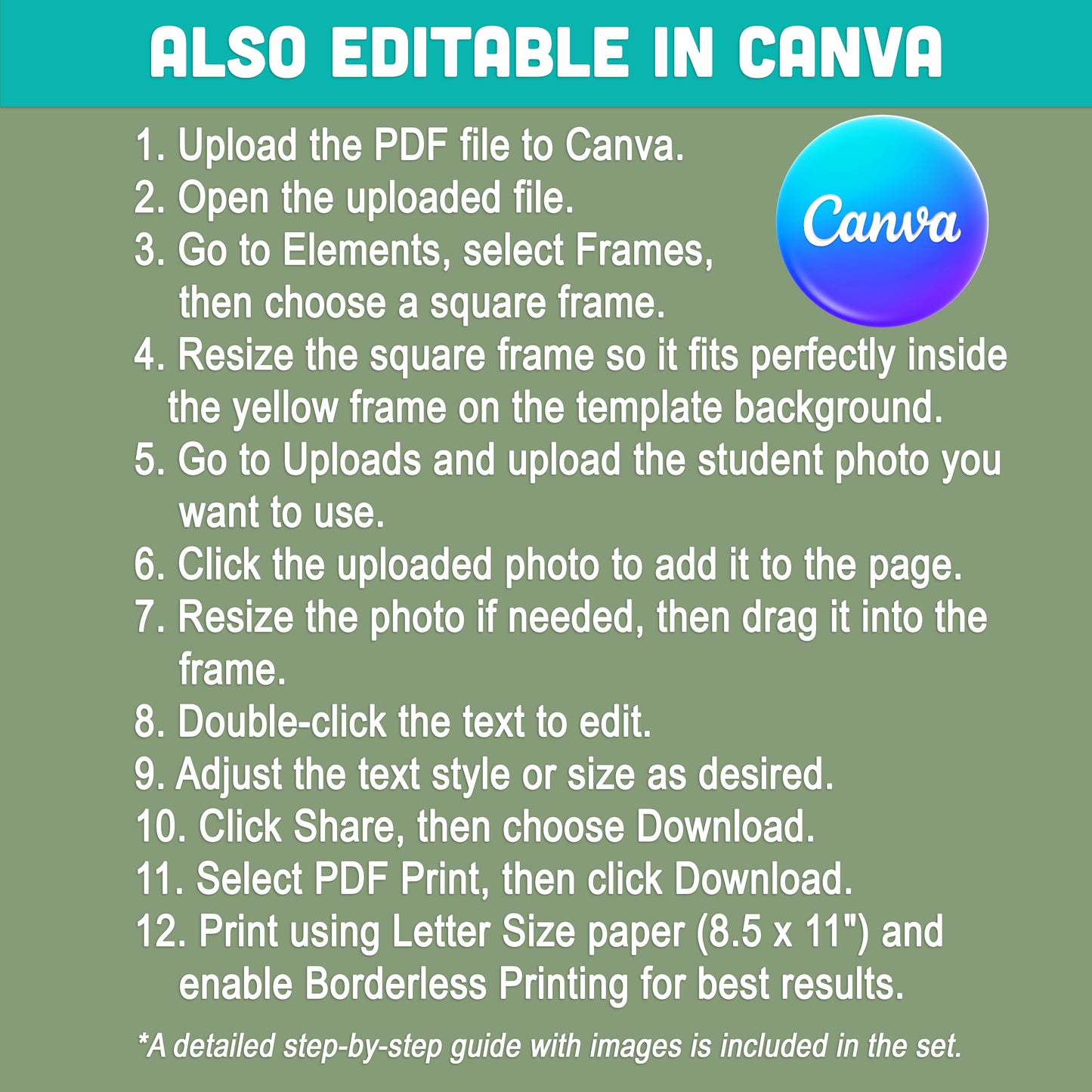
HOW TO EDIT IN CANVA
1. Upload the PDF file to Canva.
2. Open the uploaded file.
3. Go to Elements, select Frames, then choose a square frame.
4. Resize the square frame so it fits perfectly inside the yellow frame on the template background.
5. Go to Uploads and upload the student photo you want to use.
6. Click the uploaded photo to add it to the page.
7. Resize the photo if needed, then drag it into the frame.
8. Double-click the text to edit.
9. Adjust the text style or size as desired.
10. Click Share, then choose Download.
11. Select PDF Print, then click Download.
12. Print using Letter Size paper (8.5 x 11") and enable Borderless Printing for best results.
. . . . . . . . . . . . . .
WHAT'S INCLUDED
You will receive 1 ZIP file containing:
• 4 Editable PDF Templates (8.5" x 11")
• 4 Editable PowerPoint Templates (8.5" x 11")
Each format includes:
• Photo Version and No-Photo Version
• Diploma Title and Certificate Title
Also included:
• Step-by-Step Guide: How to Edit in Canva
. . . . . . . . . . . . . .
NOTE
* This is a digital item.
* No physical product or printed material will be shipped.
* Following payment, you'll receive a download link where you can download the digital files for this product instantly.
* No refunds as this is a digital product.
. . . . . . . . . . . . . .
TERMS OF USE
» Personal Use. You may print the files as many times as you like for your own personal use.
» Reselling or sharing is not allowed.
» All sales are final due to the nature of digital products.
» Copyright © Little Melon Press. Copyright does not transfer with sale.
Share