

Graduation Photo Templates, Kids Graduation Photo Craft, Add Your Own Face Graduation Craft Activity, Classroom Bulletin Board, Coloring Version Included
Graduation Photo Templates, Kids Graduation Photo Craft, Add Your Own Face Graduation Craft Activity, Classroom Bulletin Board, Coloring Version Included
Couldn't load pickup availability
These Graduation Photo Templates offer a simple way to make graduation day feel more personal for children. With this Add Your Own Face Graduation Craft, kids can create their own graduation character by adding a photo, making each piece unique and meaningful. It’s a creative activity for parents and a helpful resource for teachers planning classroom celebrations for preschool, Pre-K, and kindergarten.
The set includes 10 Unique Designs (Light + Dark Skin Tone, PDF + PNG with Transparent Background), Coloring Version Included, providing options for both ready-to-use and hands-on coloring. You’ll also receive Includes High-resolution PDF + PNG Files in High Resolution 300 DPI, making it easy to print clear and detailed visuals for classroom displays, bulletin boards, or graduation ceremony decorations. Suitable for school classrooms, homeschool use, family activities, and celebration events.
• Instructions for PDF
1. Open PDF – Open the file in a PDF reader.
2. Print – Print the body template on 8.5"x11" paper.
3. Cut & Add Face – Cut out the body and glue your face photo.
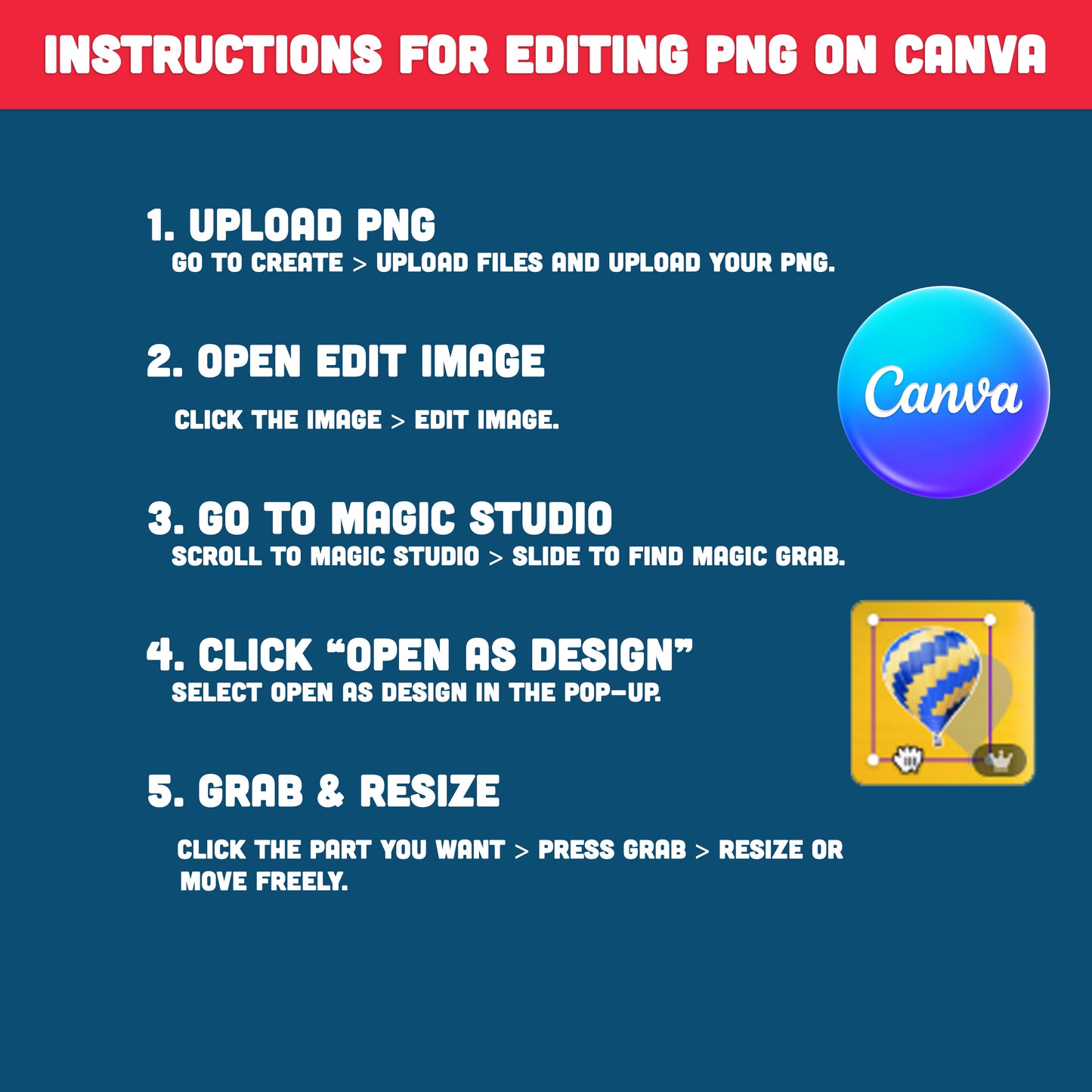
• Instructions for editing PNG on Canva
How to Resize Your Image in Canva (Easy Step-by-Step Guide)
Follow these simple steps to resize any element—quickly and easily—using Canva’s Magic Grab tool:
1. Select “Create” and upload your PNG file
Click Create → Upload files to upload the PNG image you want to edit into Canva.
2. Choose “Edit image”
After your image appears on the canvas, click on it and select Edit image from the top toolbar.
3. Open the “Magic Studio” menu
Scroll through the editing tools and open Magic Studio. Slide to the right to find Magic Grab.
4. In the pop-up box, click “Open as design”
When Canva displays a pop-up window, select Open as design to continue.
5. Use Magic Grab to resize the selected part
Click on the area of the image you want to adjust—such as a hat.
Then press the Grab button on the left side. The selected part will now separate from the image, allowing you to resize, move, or adjust it freely.
Add a creative and thoughtful element to your celebration with these Graduation Photo Templates, and enjoy a simple activity that brings children and families together.
. . . . . . . . . . . . . .
WHAT YOU WILL RECEIVE
• You’ll receive a ZIP file including 10 Light Skin PDFs + 10 PNGs, 10 Dark Skin PDFs + 10 PNGs, and 10 Coloring Pages—all in 300 DPI, ready to use, with easy Canva-friendly instructions for editing the PNG files.
• Digital file. No printed products will be mailed.
• You can print from home or at your local print shop.
• Print on Letter size Card Stock (8.5"x11")
. . . . . . . . . . . . . .
JUST DOWNLOAD, PRINT, AND GET STARTED
* This item comes as a high-resolution file that you can download straight after purchasing.
* You can print as many copies as you want.
. . . . . . . . . . . . . .
NOTE
* This is a digital item.
* No physical product or printed material will be shipped.
* Following payment, you'll receive a download link where you can download the digital files for this product instantly.
* No refunds as this is a digital product.
. . . . . . . . . . . . . .
TERMS OF USE
» Personal Use. You may print the files as many times as you like for your own personal use.
» Reselling or sharing is not allowed.
» All sales are final due to the nature of digital products.
» Copyright © Little Melon Press. Copyright does not transfer with sale.
Share