

Sealife Animal Body Clipart: Add Your Own Photo Face, Printable Ocean-Themed Cutouts for Kids’ DIY Creativity, Fun Marine Craft Activity, PDF + PNG Instant Download
Sealife Animal Body Clipart: Add Your Own Photo Face, Printable Ocean-Themed Cutouts for Kids’ DIY Creativity, Fun Marine Craft Activity, PDF + PNG Instant Download
Couldn't load pickup availability
Turn your little one into a sea creature with these printable sea life body templates!
This fun and interactive activity allows kids to add their own photo faces to 20 unique marine animal cutouts, including whales, turtles, and jellyfish. It’s a perfect addition to ocean-themed parties, preschool crafts, or creative storytelling activities. Each template comes in PDF and PNG formats with transparent backgrounds, making them versatile for printing or digital use.
Designed for easy use, this download makes crafting simple. Print, cut, and let kids bring their favorite sea animals to life! These marine-themed cutouts inspire creativity, encourage imaginative play, and make learning about ocean life exciting.
Whether you're a parent, teacher, or homeschool educator, these printable templates offer a fantastic way to engage kids in ocean exploration. Download now and start a fun underwater adventure filled with sea life magic!
• Instructions for PDF
1. Open PDF – Open the file in a PDF reader.
2. Print – Print the body template on 8.5"x11" paper.
3. Cut & Add Face – Cut out the body and glue your face photo.
• How to Insert a Photo into a Frame in Canva
1. Upload your PNG file to Canva.
2. Click “Use in a new design” and choose “Custom size”. Set the size to 8.5 x 11 inches.
3. Go to Elements → select Frames → choose a circle frame.
4. Resize the frame to fit perfectly over the circle area in your background design.
5. Open the Uploads tab and select the photo you want to use.
6. Adjust the size of your photo if needed.
7. Drag and drop the photo into the frame.
8. Right-click the frame, then select Layer → Send to back.
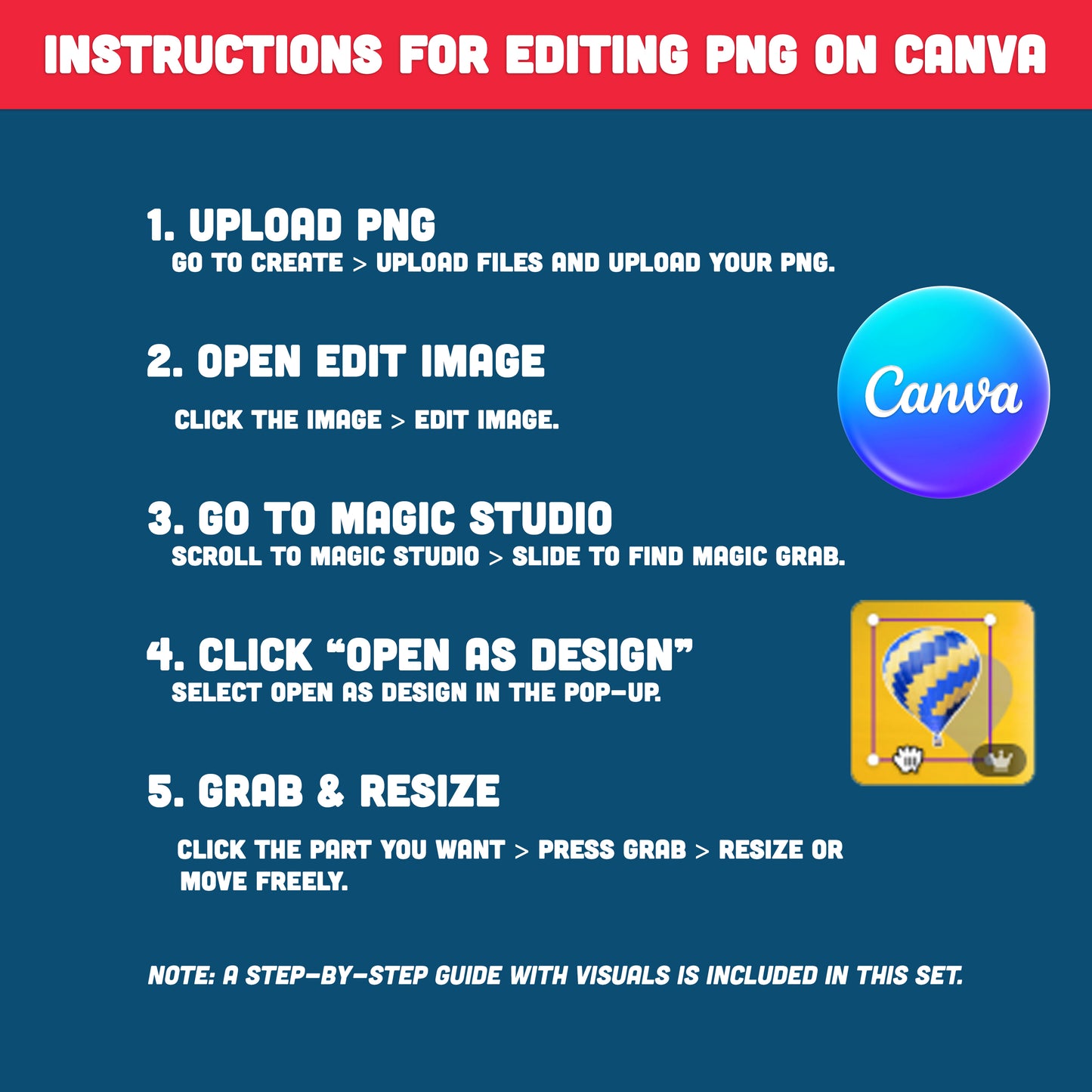
• Instructions for editing PNG on Canva
How to Resize Your Image in Canva (Easy Step-by-Step Guide)
Follow these simple steps to resize any element—quickly and easily—using Canva’s Magic Grab tool:
1. Select “Create” and upload your PNG file
Click Create → Upload files to upload the PNG image you want to edit into Canva.
2. Choose “Edit image”
After your image appears on the canvas, click on it and select Edit image from the top toolbar.
3. Open the “Magic Studio” menu
Scroll through the editing tools and open Magic Studio. Slide to the right to find Magic Grab.
4. In the pop-up box, click “Open as design”
When Canva displays a pop-up window, select Open as design to continue.
5. Use Magic Grab to resize the selected part
Click on the area of the image you want to adjust—such as a hat.
Then press the Grab button on the left side. The selected part will now separate from the image, allowing you to resize, move, or adjust it freely.
. . . . . . . . . . . . . .
WHAT YOU WILL RECEIVE
• You will receive 1 ZIP file with 20 PDF pages and 20 PNG files, plus How to Insert a Photo into a Frame in Canva and easy instructions to help you edit the PNGs in Canva.
• Digital file. No printed products will be mailed.
• You can print from home or at your local print shop.
• Print on Letter size Card Stock (8.5"x11")
• The file you receive will NOT be editable - it comes as pictured.
. . . . . . . . . . . . . .
JUST DOWNLOAD, PRINT, AND GET STARTED
* This item comes as a high-resolution file that you can download straight after purchasing.
* You can print as many copies as you want.
. . . . . . . . . . . . . .
NOTE
* This is a digital item.
* No physical product or printed material will be shipped.
* Following payment, you'll receive a download link where you can download the digital files for this product instantly.
* No refunds as this is a digital product.
. . . . . . . . . . . . . .
TERMS OF USE
» Personal Use. You may print the files as many times as you like for your own personal use.
» Reselling or sharing is not allowed.
» All sales are final due to the nature of digital products.
» Copyright © Little Melon Press. Copyright does not transfer with sale.
Share